Vmware

Simulate ONTAP 8 - An introduction

While talking with a colleague, she told me that she would like to know more about NetApp. Unfortunately we don’t have a NetApp system in our lab and playing with customer equipment is… mmh…unfavorable. But there’s a solution for this problem: Simulate ONTAP 8. This software allows you to simulate a 7-Mode or Cluster-Mode (c-Mode) system and to test many of the features. All you need is a VMware Workstation/ Player/ Fusion or an ESXi host.

HP VSR1000: How to configure a IPsec tunnel

One possible use case for the HP VSR1000 is to build IPsec tunnels for secure data transfer. In this post I will show you how to configure a IPsec tunnel between two HP VSR1000. If you need a short introduction, feel free to take a look at this article.

The experimental setup

We have two server VMs (in this case Windows Server 2008 R2 with SP1) and two HP VSR1000 Virtual Service Router. To simplify I added a vSwitch without uplinks to my ESXi at home. This vSwitch has three port groups. While each VSR1000 is connected to only one site and the WAN port group, the server VMs are only connected to one site. The WAN port group should simulate the WAN link, but in reality WAN can be anything. This is a screenshot of the ESXi vSwitch and port group configuration, as well as the logical setup.

VMware VCP certification has now an expiration date

This morning a tweet from Josh Coen (VCDX #129) shocked me a bit:

So far the VMware certification had no expiration date. If you had a VCP for ESX2, this was still valid up to today. I quickly checked my VMware Training account and noticed a tiny exclamation mark above my certifications.

Patrick Terlisten/ vcloudnine.de/ Creative Commons CC0

Patrick Terlisten/ vcloudnine.de/ Creative Commons CC0

Change network adapter type with PowerCLI

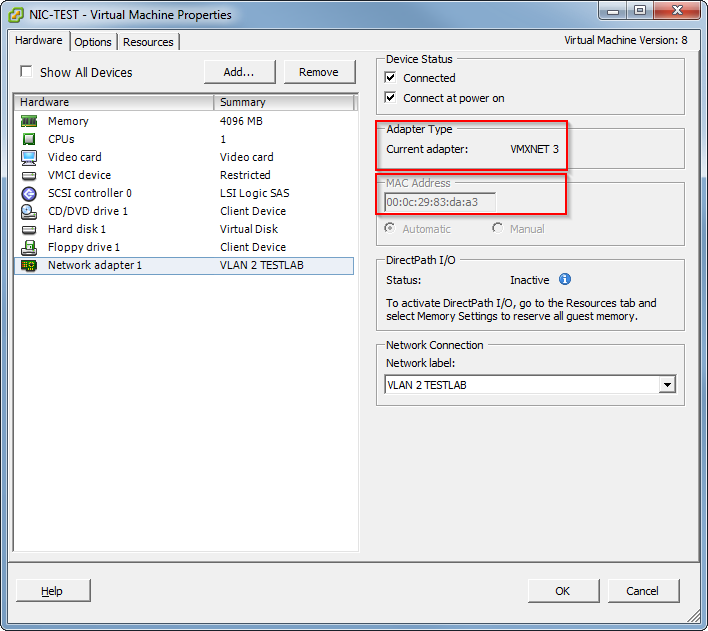
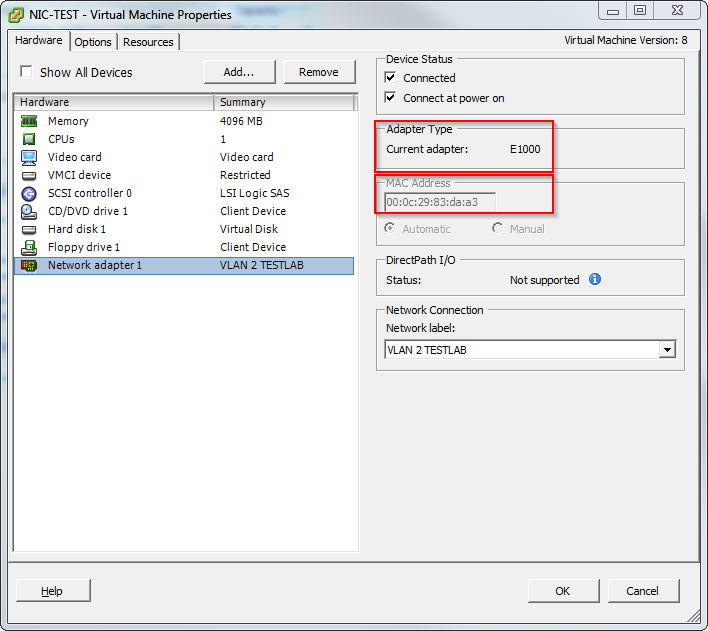
Today I found this neat PowerCLI One-liner in my Twitter timeline:

A nice side effect of this one-liner is, that the mac-address doesn’t change, as you can see in the screenshots.

Patrick Terlisten/ vcloudnine.de/ Creative Commons CC0

Patrick Terlisten/ vcloudnine.de/ Creative Commons CC0

Patrick Terlisten/ vcloudnine.de/ Creative Commons CC0

Patrick Terlisten/ vcloudnine.de/ Creative Commons CC0

How to deploy Cisco CSR1000V & HP VSR1000 Virtual Service Router

In an earlier blog post I wrote a bit about virtual service routers. Now I want to show you how easily you can deploy a virtual service router in your lab. To do so I have downloaded the the HP VSR1000 Virtual Service Router and the Cisco Cloud Service Router 1000V. If you want to know how to download them, just read the mentioned blog post. Because both virtual service routers delivered as OVA, I can easily deploy them through the vSphere Client (sorry, no Web Client. It’s a standalone HP Micro Server without a vCenter). I will show an example on how to deploy the Cisco CSR1000V. That procedure is exactly the same for the HP VSR1000. The procedure is pretty straightforward. The screenshots are self-explanatory.

Windows Server 2012 Cluster with VMware vSphere 5.1/ 5.5

While I was poking around in my Twitter timeline, a tweet from Victor van den Berg (VCDX #121) got my attention.

My first though “What a step backwards!”. I have installed a bunch of Microsoft clusters in Virtual Infrastructure and vSphere enviroments and most times it was PITA. Especially with Raw Device Mappings (RDM) and bus sharing, which prevents vMotion a VM to another host (regardless of this: it’s not supported!). It’s ironic to invest a significant amount of money into a technology, which  increases availability and manageability, and another technology lowers availability due additional maintenance windows for cluster failovers. But that’s exactly what you get, when you use MSCS with SCSI bus sharing (RDM or VMFS). A way to address this issue is to use in-guest iSCSI. This means that you access the shared disks directly from the VM due a iSCSI initiator running in the VM. To do so, you have to present the disks for the cluster to the VMs, not to the ESXi hosts. To be honest: In-guest increases complexity. Especially then, when the customer doesn’t have a iSCSI infrastructure. A second method is in-guest SMB, which is currently only supported with Windows Server 2012. Just to clear up the matter with in-guest iSCSI and W2K12(R2). Mostafa Khalil provided the crucial information:

VMware VAAI support for HP P2000 G3 & HP MSA 2040

Information

Beginning with the TS251R004 firmware release, the HP MSA VAAI plug-in is no longer supported as the HP MSA controller firmware now uses T10 compliance in an ESX Environment documented in TS251R004.

The HP P2000 G3 and the HP MSA 2040 are two widely used entry-level storage arrays. The P2000 G3 is VAAI capable since firmware version T230. But, contrary to the HP MSA 2040, you have to install the software plug-in for VMware VAAI if you use the P2000 G3. According to the “HP MSA 2040 Storage Configuration and Best Practices for VMware vSphere” whitepaper the MSA 2040 supports VAAI nativly without an additional plugin.

vStorage API for Array Integration & vSphere Essentials Plus

During the installation of a really small vSphere environment, I used the 60 days instand-on license. This allows me to use some fancy vSphere Enterprise Plus feature during the installation. Specifically I use host profiles to configure the ESXi hosts. At the end of the installation process I removed the host profiles and installed the Essentials Plus license. The enviroment consisted of two HP ProLiant DL360 Gen8, a dual-fabric SAN with a HP MSA 2040, two Brocade 300 FC switches, some more stuff and a vSphere Essentials Plus license. The customer and I decided to install VMware vCenter 5.5.0b and ESXi 5.5.

Enable VMware Fault Tolerance in nested enviroments

While playing around in my lab, I wanted to enable VMware Fault Tolerance (FT)  for a VM. In the absence of physical HW I use a nested enviroment, which is running on a HP ProLiant DL160 G6 (2x Intel Xeon E5520, 32G RAM, a RAID 0 with 4 SATA drives). FT isn’t available in nested enviroments, because HW virtualization features are required. This screenshot was taken from the web client.

Regenerating expired vCenter SSL certificates

During a vSphere 5.0 > 5.5 upgrade I got this message:

The SSL certificate for this product is expired. See Knowledge Base article kb.vmware.com/kb/1009092

The customer hasn’t installed CA-signed certificats, so the expired certificates are the out-of-the-box self-signed certificates. The certificates are valid for two (VirtualCenter 2.5) respectively 10 years (since vCenter 4.x), depending on the Version. The only way to continue the installation is to renew the certificates. After renewing the certificates, you can simply continue the setup due the fact, that the vCenter service is stopped at this point of the setup and it loads the new certificates during startup. It’s the setup which checks the validity of the certificates. KB1009092 describes in great detail what to do, so I will not repeat what is already written there. You should note, that you can’t use the ESXi busybox to renew the certificates. The necessary OpenSSL binary isn’t included. The KB articles recommends OpenSSL for Windows. I simply used my Linux root server. But you can also use a small Linux VM. After renewing the certificates for vCenter, Inventory server and Web Client I simply continued the setup and it ran without problems by. The deployment of CA-signed certifcates is planned.