Vmware

VMware vExpert 2015

The VMware vExpert is a given title from VMware to individuals who have significantly contributed to the community and have spread the message of VMware to customers and partners worldwide. This is nothing you get by passing an exam. It’s given to you by VMware in respect of your work. The vExpert title is something which differates you inside the commnity. Individuals who participate in the program, have access to betas, free licenses, early access briefings, free access to VMworld conference materials online, access to a private community, use of logos etc.

How to shrink thin-provisioned disks

Disk space is rare. I only have about 1 TB of SSD storage in my lab and I don’t like to waste too much of it. My hosts use NFS to connect to my Synology NAS, and even if I use the VAAI-NAS plugin, I use thin-provisioned disks only. Thin-provisioned disks tend to grow over time. If you copy a 1 GB file into a VM and you delete this file immediately, you will find that the VMDK is increased by 1 GB. This is caused by the guest filesystem. It marks the blocks of deleted files as free, even if it only deletes metadata and not the data itself. Later, the data is overwritten with new data, since the blocks are marked as free and the new data is written in there. VMware ESXi doesn’t know that the guest has marked blocks as free. So ESXi can’t shrink the thin-provisioned VMDK.

The beginning of a deep friendship: Me & PernixData FVP 2.0

I’m a bit late, but better late than never. Some days ago I installed PernixData FVP 2.0 in my lab and I’m impressed! Until this installation, solutions such as PernixData FVP or VMware vSphere Flash Read Cache (vFRC) weren’t interesting for me or most of my customers. Some of my customers played around with vFRC, but most of them decieded to add flash devices to their primary storage system and use techniques like tiering or flash cache. Especially SMB customers had no chance to use flash or RAM to accelerate their workloads because of tight budgets. With decreasing costs for flash storage, solutions like PernixData FVP and VMware vSphere Flash Read Cache (vFRC) getting more interesting for my customers. Another reason was my lab. I simply hadn’t the equipment to play around with that fancy stuff. But things have changed and now I’m ready to give it a try.

vSphere Lab Storage: Synology DS414slim Part 1 - Unboxing and initial setup

A VMware vSphere cluster is nothing without shared storage. Most of the functions, like VMware HA or VMware vMotion (okay, vMotion is possible without shared storage), can only be used with a shared storage. The servers in my lab have Fibre Channel Host Bus Adapters (HBA), but buying an old and cheap Fibre Channel storage system wasn’t an option in my case. This left two options when choosing the right storage protocol: iSCSI or NFS. I tried to virtualize the local storage in my ProLiants with the HP StoreVirtual VSA and DataCore SANsymphony-V, but both were too complex for my needs and a lab environment. Because of this I decided to move the local storage into a small storage system and use iSCSI or NFS. I searched for a while for a suiteable system until Chris Wahl started blogging about the Synology DS414slim.

vSphere Lab Storage: Synology DS414slim Part 2 - Networking

The next step is to connect the Synology DS414slim to my lab network. I use two HP 1910 Switches in my lab, a 8 Port and a 24 Port model. The Synology DS414slim has two 1 GbE ports, which can configured in different ways. I wanted to use both ports actively, to I decided to create a bond.

Create a bond

Browse to the admin website and go to Control Panel > Network > Network Interfaces and select “Create”. Then select “Create Bond”.

vSphere Lab Storage: Synology DS414slim Part 3 - Storage

This blog post covers the setup of the volumes and shares. Depending on your disk config, variuos volume configurations are possible. The DS414slim supports all important RAID levels (Synology Hybrid RAID, Basic, JBOD, RAID 0, 1, 5, 6 and 10). I recommend to use RAID 5, if you use more then two disks. I decided to create a RAID 5 with my three Crucial M550 SSDs and use the Seagate Momentus XT as a single disk.

vSphere Lab Storage: Synology DS414slim Part 4 - VAAI-NAS Plugin

Chris Wahl wrote a good blog post about the VAAI-NAS plugin some days ago. I really recommend to read this posting. Because of his article, I will only describe the installation of the plugin. You can download the plugin on the Synology homepage for free.

There are two ways to install the plugin: With the vSphere Update Manager (VUM) and a host extension baseline, or with ESXCLI.

Plugin installation using the vSphere Update Manager

First of all, we need to import the plugin (host extension) to the patch repository. Open the vSphere C# client, switch to the “Home” screen and click “Update Manager” under “Solutions and Applications”. Switch to the “Patch Repository” tab and click “Import Patches”.

How to migrate from VMware vCOps to vROps - Part 1

VMware presented the vRealize Operations Manager 6.0 at the VMworld 2014 in Barcelona. In early december, vROps was available for download.

vROps 6.0 is the successor of VMwares IT Operations Management suite vCenter Operations Manager, or vCOps. VMware has aligned the naming scheme with other products, so this release is the first release under the new brand vRealize.

VMware has made some major improvements to this release. One of the biggest advantages is the ability to scale-out. In prior releases you had to deploy multiple vApps to scale. Now you can add additional vROps instances to a cluster. These appliances provide computing resources, as well as redundancy. This allows you to scale beyond the limits of vCOps 5. Redundancy is provided by a concept which is based on master, replica and data nodes. The fist node in a vROps deployment is the master node. By adding a replica node, you can add redundancy for the case that the master node fails. Master and replica node work in a active/ standby relationship. The data nodes are the secret behind the scalability of vROps. A data node has only one task to perform: Collect data based on the assigned adapter.

How to migrate from VMware vCOps to vROps - Part 2

Part 1 of this series has covered a short overview over vRealize Operations Manager 6.0 and the initial deployment of the virtual appliance. Now it’s time to bring it to life.

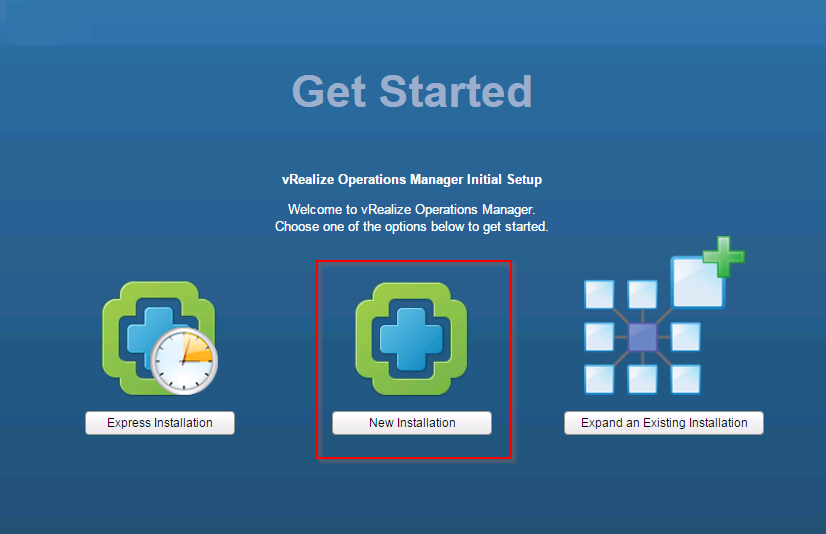
Open a browser and enter the IP of your newly deployed vROps appliance. You will get this nice initial setup screen. “New Installation” is always a good start. Click “New Installation”.

Patrick Terlisten/ vcloudnine.de/ Creative Commons CC0

Patrick Terlisten/ vcloudnine.de/ Creative Commons CC0

How to migrate from VMware vCOps to vROps – Part 3

I wrote about what’s new in vROps 6 and about the deployment of the virtual appliance. I also described how to migrate the data from the old vCOps vApp. Part 3 covers the decommission of the old vApp.

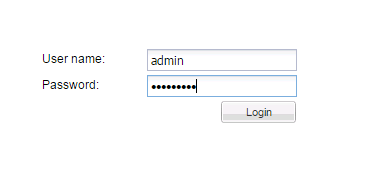
Enter the IP or FQDN of your UI VM into the browser. Login as admin into the administration UI.

Patrick Terlisten/ vcloudnine.de/ Creative Commons CC0

Patrick Terlisten/ vcloudnine.de/ Creative Commons CC0

Before the vApp can be removed, the vCOps needs to be unregistered from the vCenter. Click “Unregister”.